

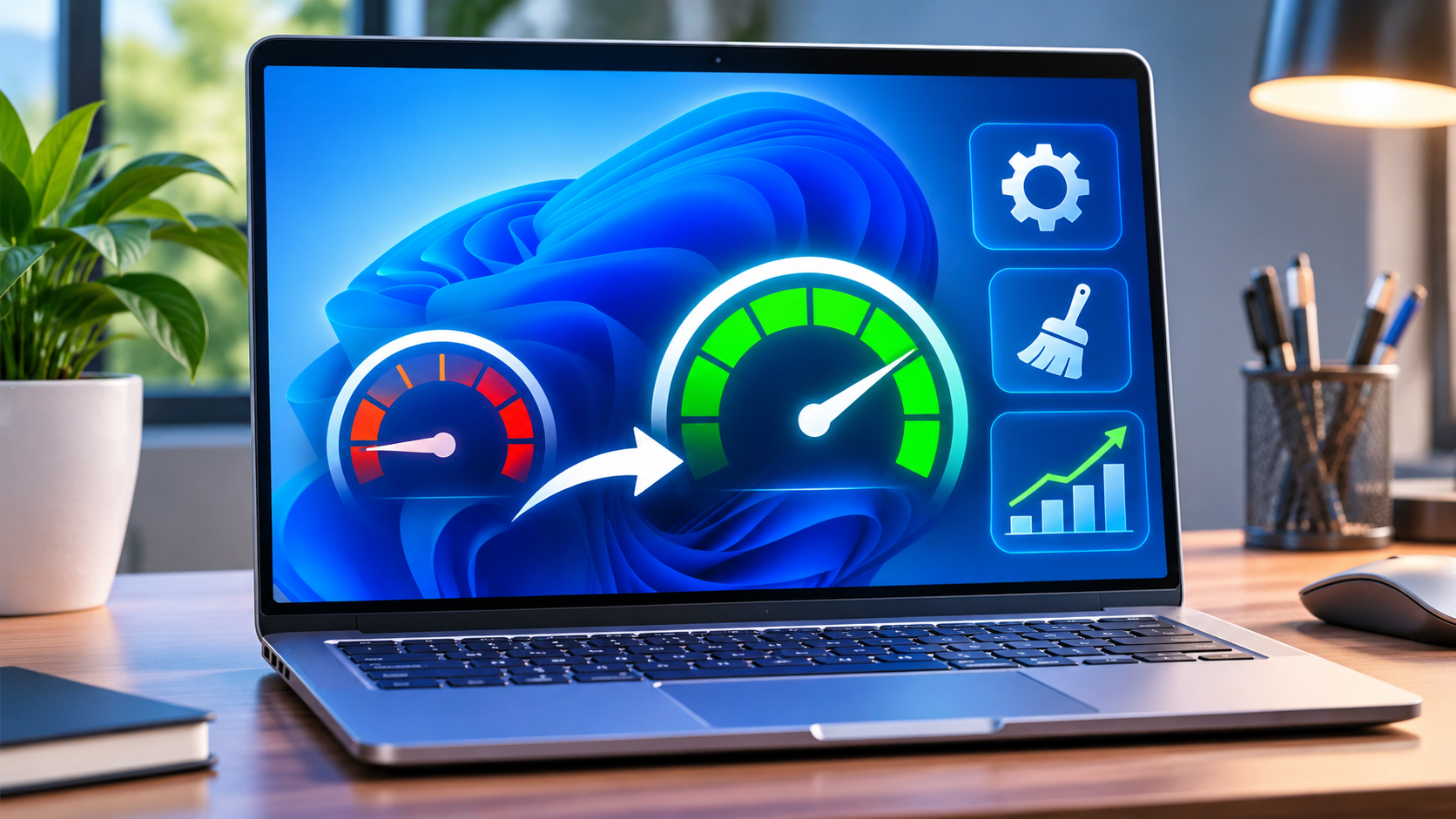

Quick answer: If your Windows 11 PC is slow, restart it, check Task Manager for resource-heavy apps, free up storage, review startup programs and install appropriate Windows updates. Avoid unverified “PC booster” tools or deleting system files.
A sluggish computer can have several causes: limited disk space, excessive background processes, outdated software, malware or hardware limitations. The right fix depends on whether the problem occurs during startup, browsing, or all the time.
1. Restart and isolate the problem
Save your work and restart Windows. Open only the program that was slow. If performance improves, too many simultaneous apps or background processes may be contributing. Note when the slowdown began and whether it followed an update or new installation.
2. Check CPU, memory and disk usage
Press Ctrl + Shift + Esc to open Task Manager. On the Processes tab, review CPU, Memory and Disk columns. A consistently busy component can help identify the bottleneck. Close only applications you recognize and have saved work in; do not end unfamiliar system processes.
3. Reduce unnecessary startup apps
Go to Settings → Apps → Startup and disable applications that do not need to launch automatically. Alternatively, use Task Manager’s Startup apps tab. Keep security, accessibility and essential work software enabled where required.
4. Check available storage
Open Settings → System → Storage. Review storage usage and temporary files. Windows Storage Sense can help remove unnecessary temporary data. Read each deletion category carefully, particularly Downloads or any category containing personal files. Back up important information first.
5. Install Windows updates
Open Settings → Windows Update → Check for updates. Install relevant updates and restart if prompted. Optional driver updates may help specific issues, but do not install unrelated drivers simply to chase a speed improvement.
6. Run a security scan
Open Windows Security → Virus & threat protection and run a Quick scan. Malicious software can consume resources. Follow the security application’s guidance if a threat is found.
7. Remove unused applications carefully
Go to Settings → Apps → Installed apps and uninstall software you no longer need. Avoid removing device drivers, security components or employer-managed applications without understanding their purpose.
8. Review browser tabs and extensions
Many active tabs and extensions can use substantial memory. Close unused tabs and temporarily disable nonessential extensions to test whether browser performance improves.
9. Check heat and power settings
Ensure air vents are unobstructed and the device is not overheating. On laptops, performance can vary with battery-saving settings. Use a suitable power mode, balancing speed with battery life and heat.
10. Know when hardware may be the limitation
If the device remains slow despite these steps, older hardware, insufficient RAM or a failing storage drive may require professional diagnosis. Back up important files before repair or hardware replacement. Do not use registry cleaners or unofficial optimization scripts as a first-line fix.
Frequently asked questions
Why is Windows 11 slow after startup?
Too many startup applications, updates running in the background or limited system resources are possible causes. Check Task Manager before making changes.
Does deleting temporary files make a PC faster?
It can help when storage is critically low, but it will not fix every performance problem. Review what Windows proposes to delete.
Should I disable all startup programs?
No. Disable only applications you recognize and do not need at sign-in.
Do I need a paid PC optimizer?
Not necessarily. Windows includes built-in tools for checking resource usage, startup apps, storage and security.
Official references
Microsoft: Tips to improve PC performance and Microsoft: Configure startup applications.
Editorial note: Instructions apply to Windows 11; exact menus can differ by version and device. Last researched: 7 November 2026.
Related troubleshooting guide
For another practical technology fix, read our Gmail storage cleanup guide.
Discover more from NewsNation Online
Subscribe to get the latest posts sent to your email.
आपके लिए सुझाव















Leave a Reply