Backing up photos and contacts helps protect important memories and information if your Android phone is lost, damaged or replaced. A backup is most useful when you know what it includes and have tested that you can restore it.
Back up photos and videos
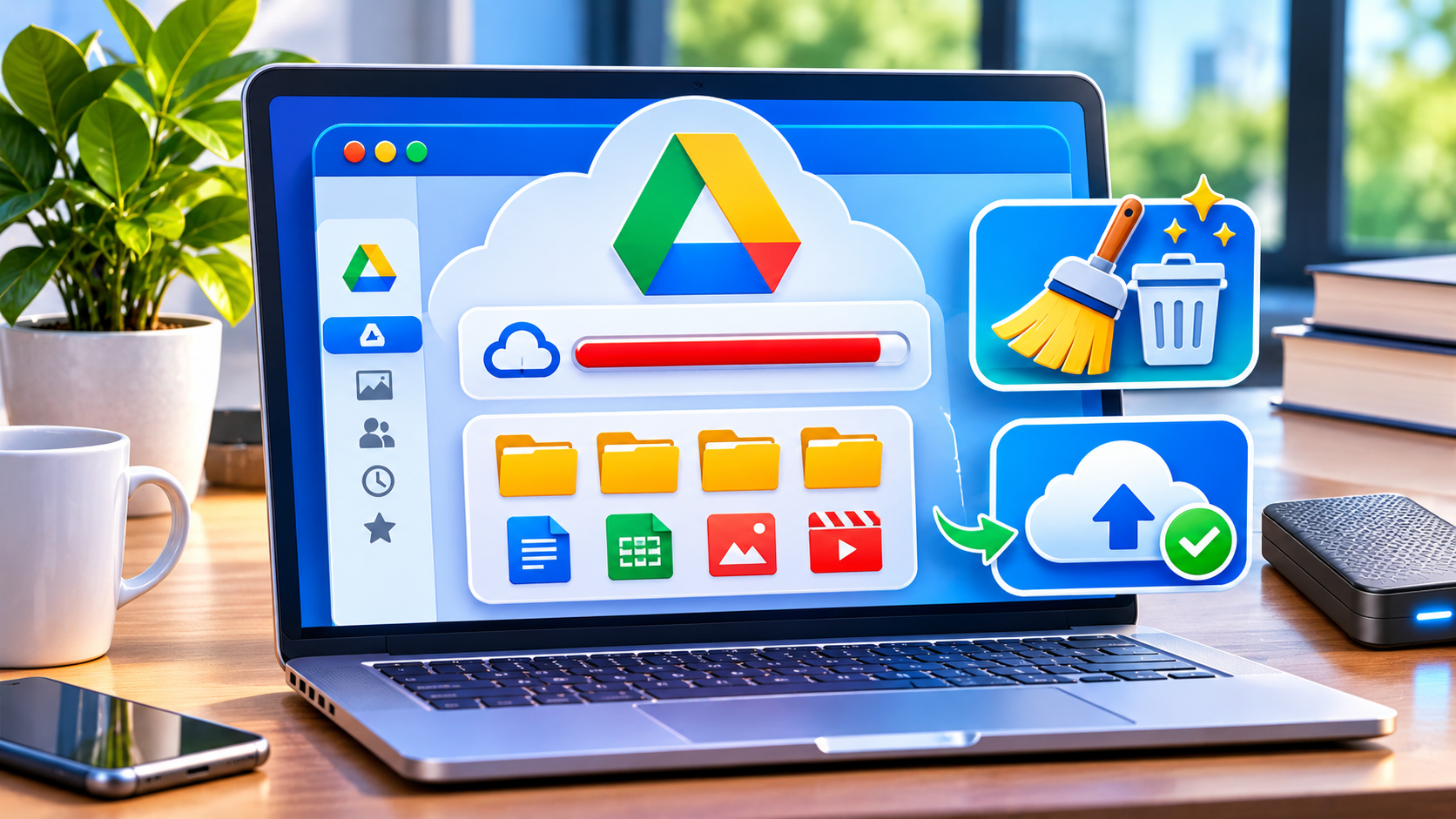
Open Google Photos, sign in to the Google Account you intend to use, and review the Backup setting in your profile menu. Check which device folders are included, whether mobile data is permitted and how much cloud storage is available. Photos saved only in a local folder may not be backed up automatically.
Keep contacts safe
Open your phone’s Settings and look for Google account sync or the Contacts app’s sync options. Confirm that important contacts are saved to the account you expect, not only to the phone or SIM. The exact menus vary by manufacturer and Android version. Before changing phones, verify your contacts are visible in the intended account.
Check Android device backup
Android’s backup settings may include app data, call history, device settings and messages, depending on the device and app. Check Settings for Google Backup or Backup by Google One and read the items shown. Not every app’s data is included, and some apps require their own export or backup process.
Test your backup before you need it
Use another signed-in device or the relevant service’s website to confirm that a few recent photos and contacts are present. Keep your recovery phone number and email current, enable strong account security and store recovery information safely. Consider a separate offline copy of irreplaceable files, protected from loss and unauthorised access.
Before selling or resetting a phone
Verify the backup, move any files that were excluded and sign out or remove accounts as directed by the manufacturer. Only then perform the official factory reset. Do not assume a reset can be reversed.
For official steps, see Google Android Help: Back up or restore data and Google Photos Help: Back up photos and videos. For related protection advice, read our password and two-factor authentication guide.
Also read:
➤ How to Secure WhatsApp and Other Messaging Accounts
➤ How to Spot Fake Apps Before Installing Them
➤ How Small Businesses in Jalna Can Win More Customers Online: 7 Practical Steps
सीधे अपनी Facebook फ़ीड में पाएँ — News Nation Online पेज को Follow करें।
आपके लिए सुझाव