

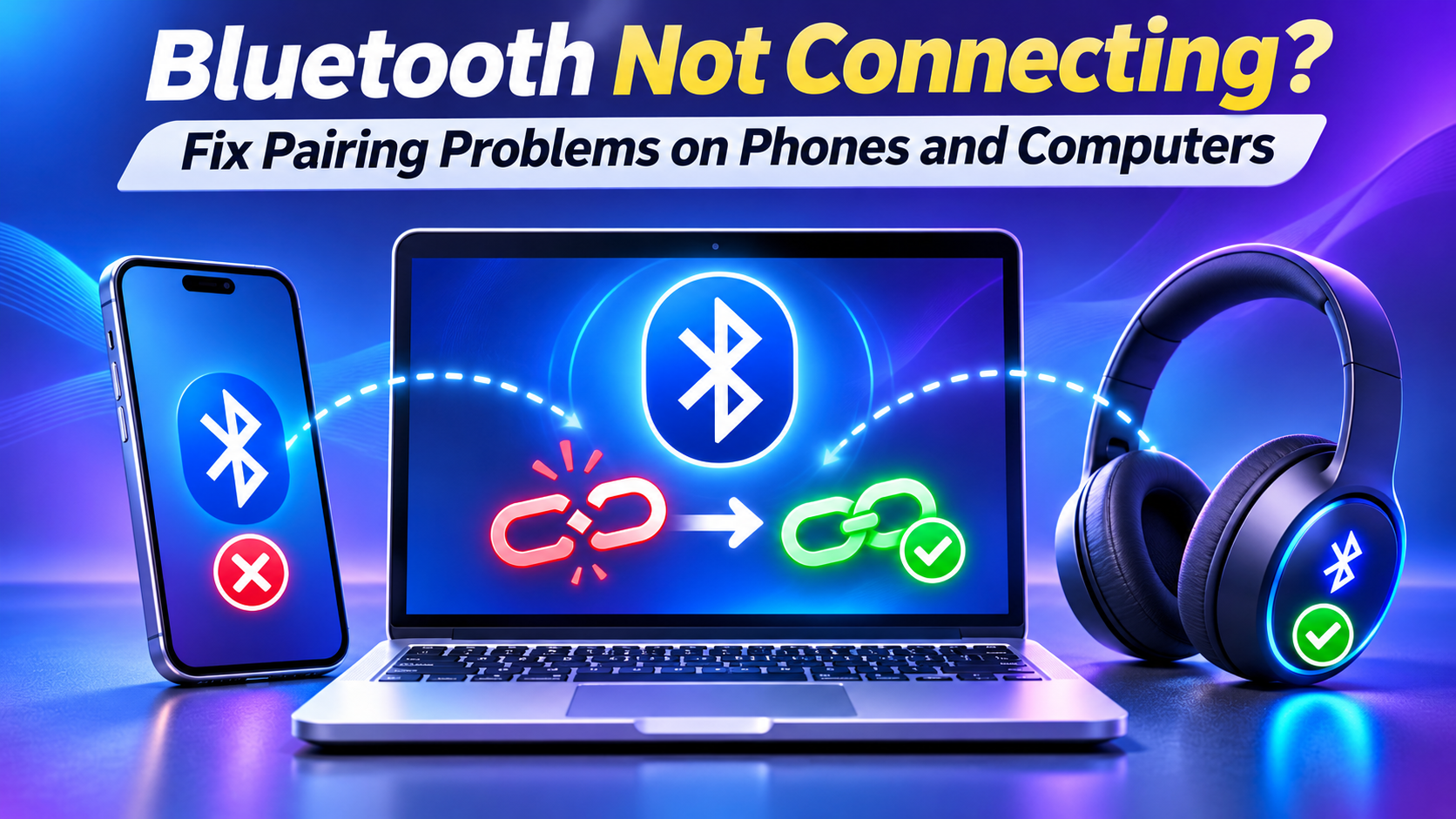
Understand discovery versus connection
Bluetooth discovery, pairing and active connection are different steps. A device can be visible but fail to pair, or pair successfully but not provide the expected audio or data function. Some accessories connect to only one phone or computer at a time.Step 1: Check compatibility and battery
Confirm the accessory supports your device and the intended function. A Bluetooth keyboard, speaker and file-transfer accessory may use different profiles. Charge both devices and keep them close together during setup.Step 2: Activate pairing mode
Follow the accessory manufacturer’s instructions to enter pairing mode; button combinations and indicator lights differ. A device that was previously paired with another phone may reconnect there automatically. Disconnect it from the old device if appropriate.Step 3: Restart Bluetooth and the devices
Turn Bluetooth off and back on in the operating system’s settings, then restart the phone or computer if needed. Restart the accessory according to its manual. Avoid pressing a factory-reset button unless you understand what settings will be erased.Step 4: Remove stale pairing information
On iPhone, go to Settings → Bluetooth, tap the information button beside a device and choose Forget This Device when appropriate. On Android, use the Bluetooth or Connected devices settings to forget an existing pairing. On Windows, open Settings → Bluetooth & devices; on Mac, use Bluetooth settings. Pair again from scratch. Only remove devices you can access and reconfigure.Step 5: Check permissions and visibility
Some Android apps need nearby-device or Bluetooth permissions to discover accessories. Grant only permissions necessary for the task. On a computer, confirm Bluetooth is enabled and airplane mode is not disabling it.Step 6: Reduce interference
Move the accessory closer and away from dense obstacles or crowded wireless equipment. Bluetooth uses radio frequencies that can be affected by interference. If the accessory connects but audio cuts out, test at a shorter distance.Step 7: Update trusted software
Install relevant operating-system updates. For computers, use built-in update tools or the device manufacturer’s official drivers. Accessories may have firmware updates through official companion apps. Avoid unknown driver-download sites.Step 8: Check the selected audio output
If headphones are paired but sound plays from the laptop speakers, choose the correct audio output in system sound settings. On phones, verify that the intended Bluetooth device is selected for media or calls. Not all devices support both functions.Step 9: Reset only as a last resort
A network or Bluetooth settings reset can erase saved pairings and other configuration. Record needed details and consult a work-device administrator first. For an accessory factory reset, follow the manufacturer’s exact model instructions.Frequently asked questions
Why does my Bluetooth device say paired but not connected?
It may be connected to another device, out of range or not selected for the intended service. Check its connection status and audio output.Why can’t my phone find my headphones?
The headphones may not be in pairing mode or may already be connected elsewhere.Should I reset Bluetooth settings immediately?
No. Start with battery, pairing mode, proximity and a restart.Official references
Microsoft Support: Fix Bluetooth problems in Windows; Apple Support: If a Bluetooth accessory won’t connect to your iPhone or iPad. Related guides: Windows 11 running slow and Gmail storage full. NewsNationOnline practical guide. Prepared 7 November 2026. Accessory instructions vary by model.Also read:
➤ YouTube Videos Not Playing? Fix Buffering, Black Screens and Playback Errors
➤ Xbox Nano Controller: $49.99 Price, Features, Compatibility and November Release Explained
➤ The Phone Can Wait: Learning to Protect My Attention in a Connected World
जालना, महाराष्ट्र और देश-दुनिया की ताज़ा खबरें
सीधे अपनी Facebook फ़ीड में पाएँ — News Nation Online पेज को Follow करें।
👍 Facebook पर Follow करेंसीधे अपनी Facebook फ़ीड में पाएँ — News Nation Online पेज को Follow करें।
Discover more from NewsNation Online
Subscribe to get the latest posts sent to your email.
Never miss a storyFollow News Nation Online on WhatsApp for breaking news from India and the world.
आपके लिए सुझाव

















Leave a Reply