
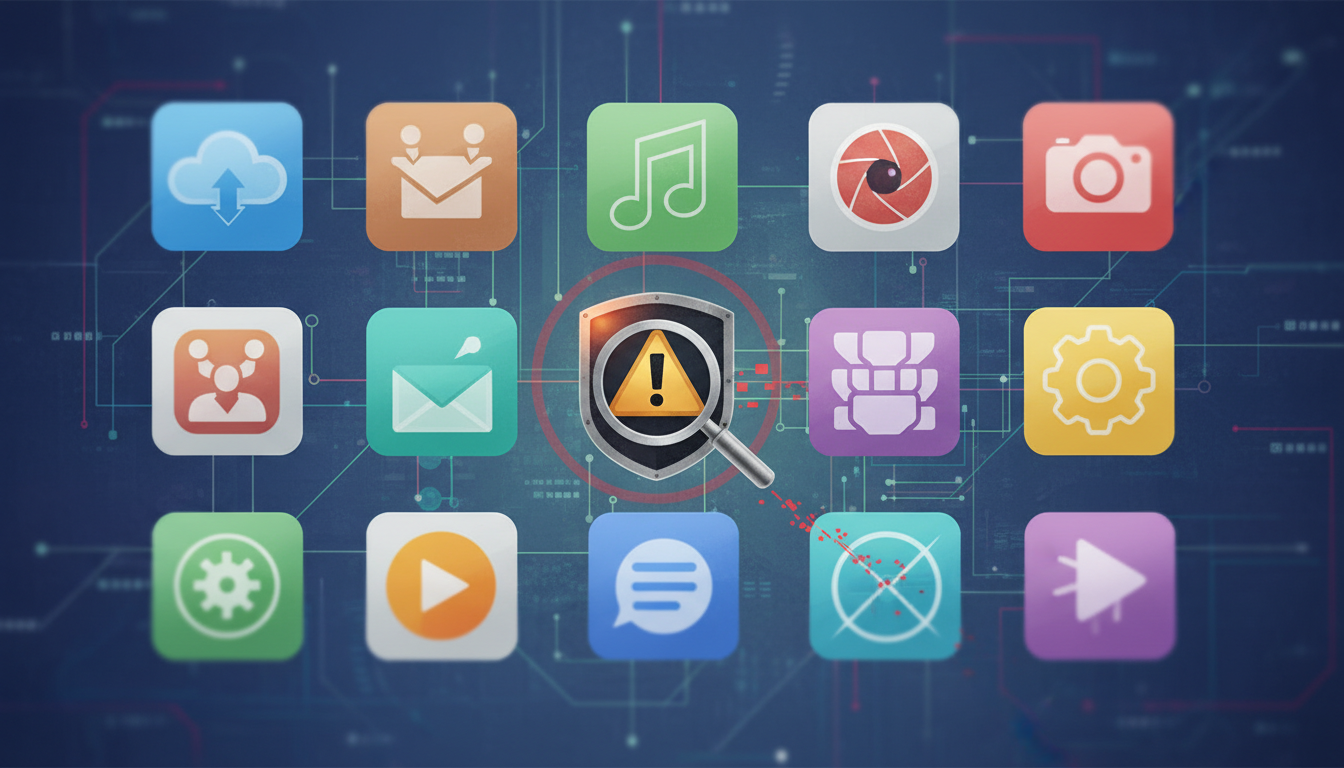
A fake or malicious app may imitate a bank, delivery service, government scheme, game or utility. It may try to collect personal information, display deceptive ads or misuse permissions. No single check proves an app is safe, so combine several checks before downloading it.
Download from a trusted source
Prefer the official Google Play Store or a provider’s own website when it links to an app. Avoid APK files sent through messaging apps, random download pages or unsolicited links. An app-store listing is not a guarantee that every app is trustworthy.
Check the developer and listing
- Inspect the developer name and its other apps.
- Compare the app name, logo and website with the company’s official site.
- Read recent reviews for repeated reports of unexpected charges, intrusive ads or unusual access requests.
- Review update history, privacy information and support details. Be cautious if they are missing or inconsistent.
Reviews and download counts can be manipulated. Search for the app from the company’s official website rather than trusting a link sent by an unknown person.
Review permissions
Ask whether each permission makes sense for the app’s purpose. A simple wallpaper or calculator app generally should not need broad access to SMS, accessibility controls, contacts or permission to display over other apps. Some legitimate apps need sensitive permissions for specific features, but you should understand why. Deny permissions that are not needed and uninstall an app that demands access without a clear reason.
Keep Play Protect enabled
Google says Play Protect checks Play Store apps before download and scans apps from other sources for potentially harmful behaviour. It can warn about, disable or remove harmful apps and may block some risky installations. Open Play Store, tap your profile icon, choose Play Protect and check its settings. It is an extra layer of protection, not a guarantee that every scam will be detected.
Watch for urgent installation requests
Do not install an app because an unsolicited caller says it is needed to receive a refund, verify a bank account or fix UPI. Never give an unknown app remote access to your phone or share your screen while banking.
If you installed a suspicious app
Revoke its permissions and uninstall it if possible. Run a Play Protect scan, update Android and review account activity. If you entered a password, change it through the official service. Contact your bank immediately if you approved a payment or shared financial credentials. For suspected financial cyber fraud, call 1930 and report at cybercrime.gov.in.
For more guidance, read NewsNationOnline’s guide to reporting online fraud in India and visit the official National Cyber Crime Reporting Portal.
Official source
Google Android Help: Use Google Play Protect to help keep apps safe
Discover more from NewsNation Online
Subscribe to get the latest posts sent to your email.
आपके लिए सुझाव













Leave a Reply