

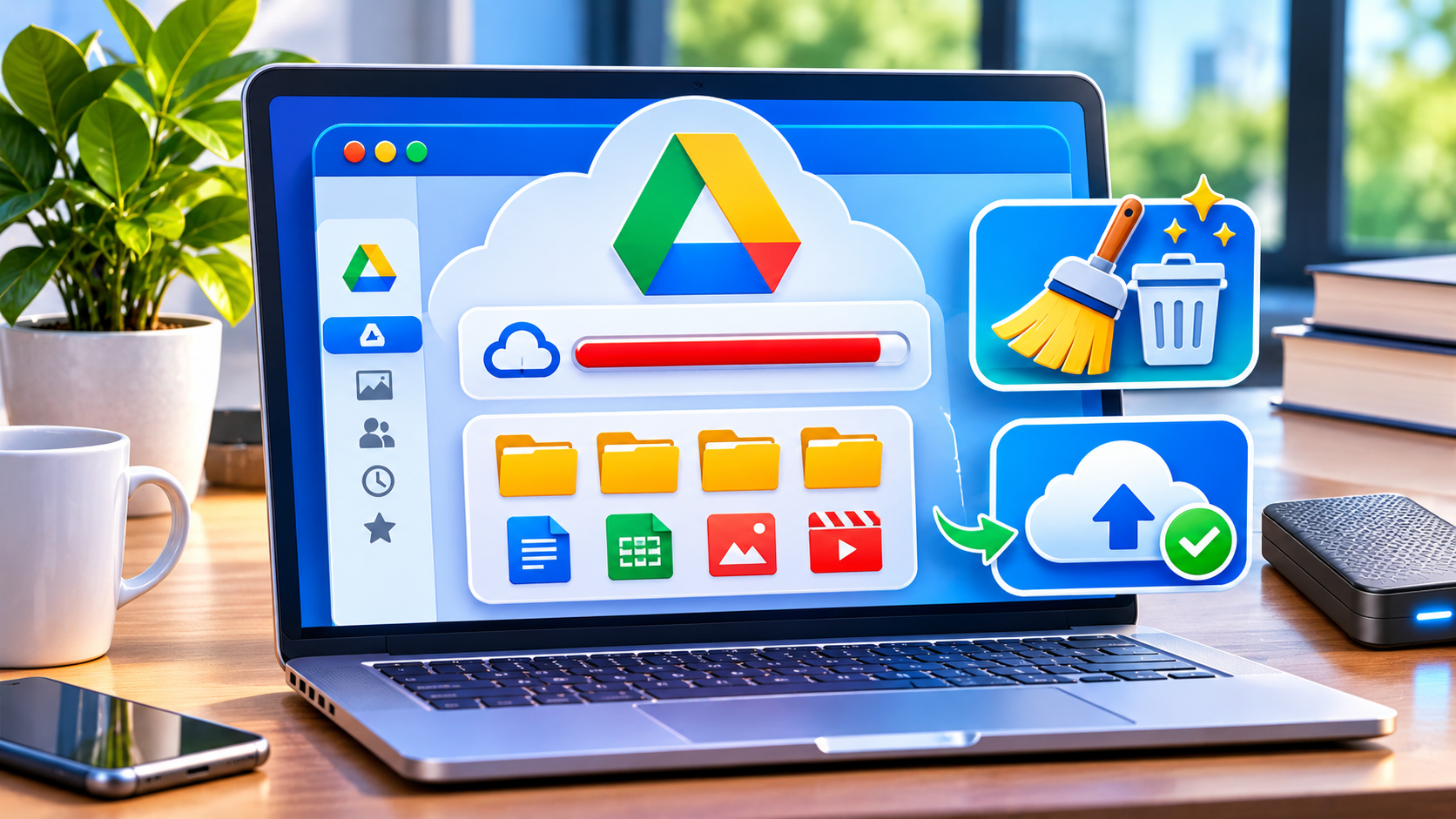

Quick answer: When Google Drive storage is full, review your Google Account storage breakdown, sort Drive files by size, back up anything important and delete only files you no longer need. Review Trash carefully before permanently clearing it. Remember that Gmail, Google Photos and certain backups also use your Google storage allowance.
A Drive storage warning does not necessarily mean Drive alone is using all the space. Google Account storage is shared across multiple services, so the most effective cleanup starts with identifying where the space is going.
Step 1: Check the storage breakdown
Open your Google Account’s storage manager or the Storage section in Drive. Compare the space used by Drive, Gmail, Photos and backups. For personal accounts, the available allowance depends on the plan; work or school accounts may follow administrator-defined rules. If Photos or Gmail uses most of the storage, focus there instead of deleting useful Drive documents.
Step 2: Sort Drive files by size
On the Drive website, select Storage in the left sidebar. Review files from largest to smallest. Large videos, archives and exported recordings may offer the greatest savings. File sizes shown on your computer through Drive for desktop can differ from cloud usage because some local files are placeholders.
Step 3: Back up valuable files before deleting
Download important documents, photographs and project archives to a secure location. Confirm that the backup opens successfully and that you have permission to retain any work-related material. Do not delete a file just because it is old: tax records, contracts and shared project files may be essential.
Step 4: Remove genuine duplicates and obsolete exports
Look for repeated video renders, downloaded ZIP files, unused installation packages and multiple exports of the same project. Verify filenames, dates and content rather than assuming similarly named files are duplicates. Move only unnecessary files to Trash.
Step 5: Understand shared files
Files in Shared with me generally count against their owner’s quota, not yours. Making a copy, uploading your own file to a shared folder or becoming the owner can cause that content to use your storage. Avoid deleting shared team documents without checking ownership and collaborators.
Step 6: Review Trash before emptying it
Drive Trash may continue using your storage quota until items are permanently deleted. Open Trash and inspect its contents. Restore anything needed, then permanently delete only the remaining unwanted files. Warning: permanent deletion can make recovery impossible.
Step 7: Check Gmail, Photos and backups
If Drive cleanup is insufficient, review large Gmail attachments, Google Photos videos and supported device or app backups. Backup policies and storage accounting vary by service and account type. Deleting synced photographs or backups may affect other devices, so verify another copy first.
Step 8: Allow the quota to refresh
After deleting a large number of files, Google’s storage calculation can take 48–72 hours to update. If space fills again quickly, check whether automatic backups are uploading new material. A paid storage plan may be preferable when the files are genuinely necessary.
Drive storage versus computer storage
Freeing Google cloud space is not the same as freeing your laptop’s local disk. Drive for desktop may use placeholders, offline files and local caches. Do not remove folders from a synchronized location without understanding whether the change will sync to the cloud.
Frequently asked questions
Why is Google Drive full when I have few files?
Gmail, Photos, backups, hidden app data and Drive Trash may also contribute to account storage.
Do files shared with me use my quota?
Normally no. Copies you make or files you own can use your quota.
Why did storage not change after deletion?
Items may still be in Trash, or the storage meter may need up to 48–72 hours after a large cleanup.
Should I delete everything in Trash?
Only after checking that nothing important remains. Permanent deletion may be irreversible.
Official sources
Google Drive Help: How your Google storage works; Google Account Help: Manage storage; Google Workspace Learning Center: Free up storage space.
Related reading: How to safely free Gmail storage and How to improve Windows 11 performance.
NewsNationOnline editorial guide. Reviewed 7 November 2026. Some options differ for personal, Workspace and mobile accounts.
Discover more from NewsNation Online
Subscribe to get the latest posts sent to your email.
आपके लिए सुझाव

















Leave a Reply